Disk Imaging Fundamentals
This page covers disk imaging concepts and advanced Clonezilla features for users who want to understand the underlying technology.
What is Disk Imaging?
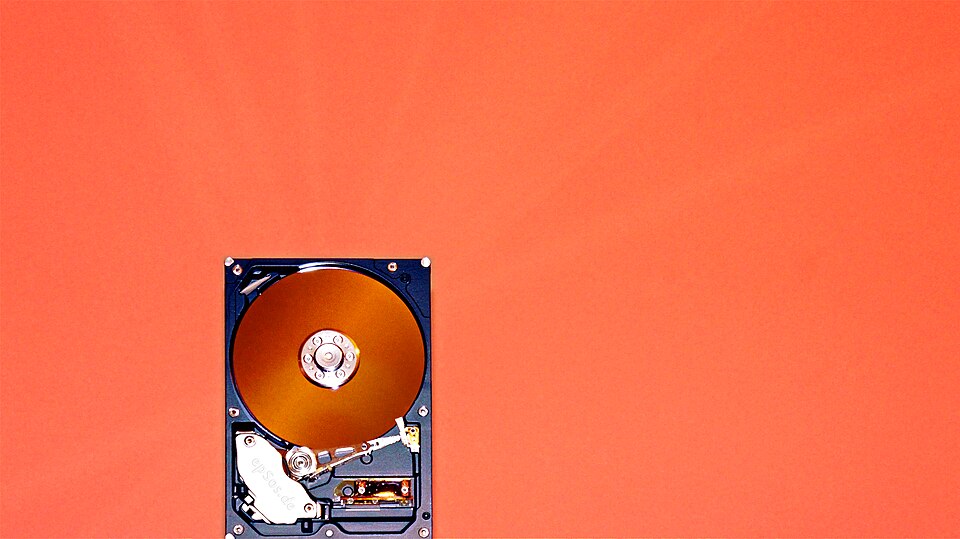
Disk imaging software like Clonezilla works by reading every sector of a storage device and writing it to an image file. This process captures everything—operating system, applications, user data, and boot configurations—making it possible to restore a system to its exact state at any point in time.
Disk Imaging vs File Backup
The key difference between disk imaging and traditional file backup lies in the scope and purpose:
- Disk Imaging: Captures the entire disk at the sector level, including bootloaders, partition tables, hidden sectors, and system files. Ideal for full system recovery and cloning.
- File Backup: Copies individual files and folders, typically excluding system files and hidden data. Better for routine file-level redundancy and user data protection.
Advanced Clonezilla Features
Beyond basic cloning, Clonezilla provides powerful capabilities for sophisticated backup scenarios:
Secure Transfer Mode
Encrypt data during transfer over SSH or NFS for remote operations. This is essential when backing up sensitive data across untrusted networks:
- Encryption: SSH-based encryption protects data in transit
- Authentication: SSH key-based authentication for automated operations
- Firewall-friendly: Operates over standard SSH port (22)
Split Images
Break large images into smaller files for storage on FAT32 or other limited filesystems:
- FAT32 compatibility: No single file exceeds 4GB limit
- Portable storage: Easy to transfer between systems
- Parallel operations: Multiple split files can be processed concurrently
Compression Algorithms
Clonezilla supports multiple compression formats to reduce storage footprint:
| Format | Compression Ratio | Speed | Best For |
|---|---|---|---|
| gzip | Medium (50-70%) | Fast | General purpose, quick backups |
| bzip2 | High (60-80%) | Medium | Storage-constrained environments |
| lzma | Very High (70-90%) | Slow | Maximum compression, archival |
| xz | Very High (70-90%) | Very Slow | Maximum compression, archival |
Checksum Verification
Built-in MD5 and SHA256 verification ensures image integrity:
- MD5: Fast verification, adequate for most use cases
- SHA256: Cryptographically secure, recommended for mission-critical backups
- Verification timing: Check after write during creation, verify before restore to ensure file integrity
Keyboard Layouts
Support for international keyboards to accommodate global deployments:
- Multiple layouts: US, UK, DE, FR, ES, and many more
- Language selection: Choose during wizard to ensure proper key mapping
- Configuration persistence: Layout setting is saved for subsequent operations
When to Use Advanced Features
- Secure Transfer: When backing up to remote servers over public or untrusted networks
- Split Images: When your storage media has 4GB file size limits (FAT32) or you need portable backups
- Maximum Compression: For archival backups where space is at a premium and restore time is less critical
- SHA256 Verification: For critical systems where data integrity is paramount and corruption is unacceptable
Learn More
For complete instructions on using these advanced features:
- Installation & Boot Process — Learn how to configure advanced options during wizard setup
- Recommended Tools — Discover companion utilities for enhanced disk imaging workflows
- References — Access official documentation for detailed feature specifications